Web guide
Create slides
on the web.
Create and edit presentations in the web app.
A Flamigo account is required.
Screenshots show the actual web interface with illustrative sample content.
Create a presentation
Sign in and choose Create presentation from your projects. Give your presentation a title in the workspace. Browse the Gallery for presentation examples and inspiration.
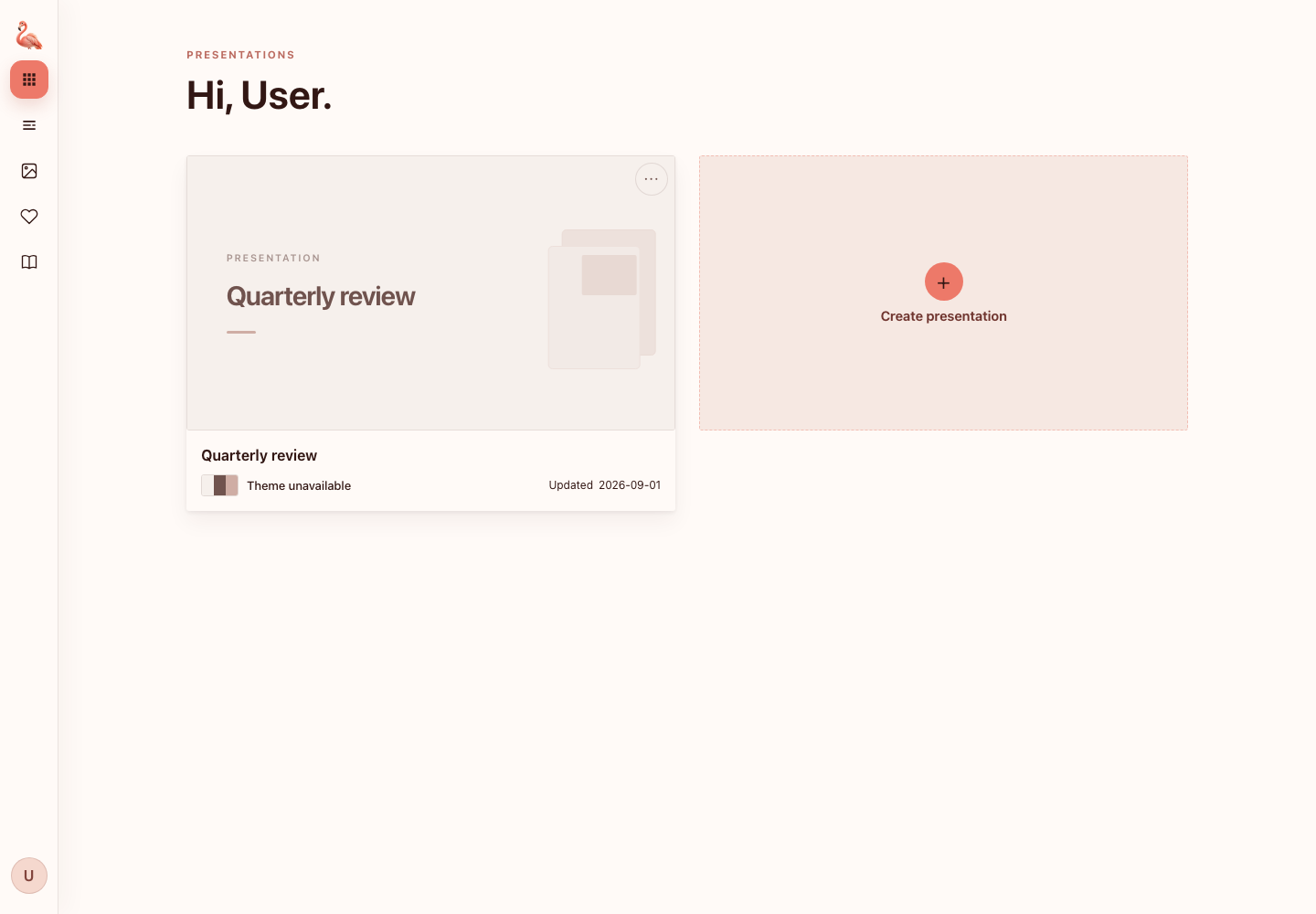
Your projects — start a new presentation or open an existing one. Add your material
Open Presentation source. Paste your notes in the Markdown tab or upload a source file. Source material is limited to 30,000 characters, including spaces and line breaks. Set a maximum slide count from 1 to 30; short source material may produce fewer slides. Then choose Generate outline.
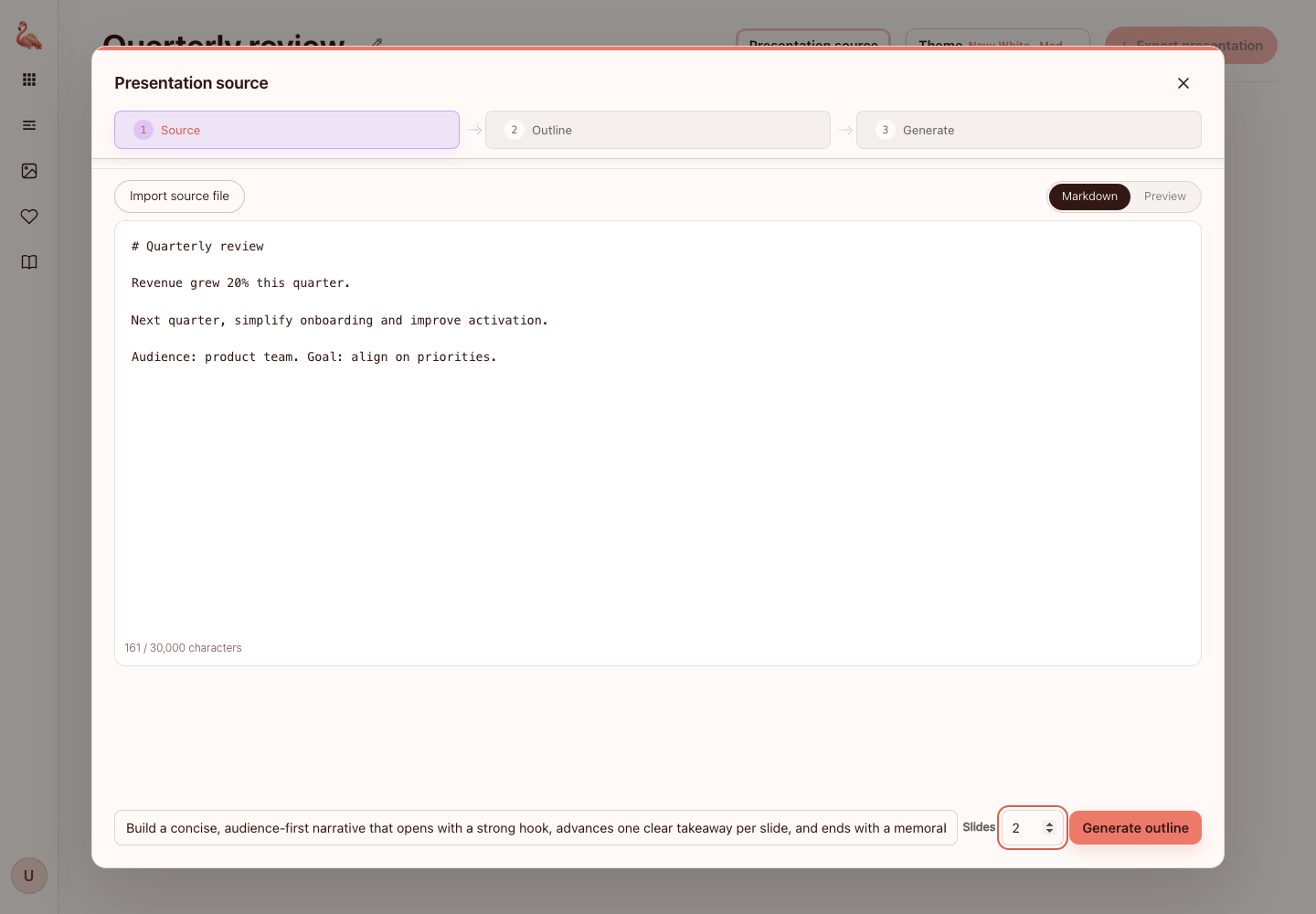
Add source material and set the maximum number of slides. Review the outline and theme
Review each slide direction and layout. Make your edits, then choose Continue to select colors, fonts, illustration style and content detail. Illustration styles are Watercolor, Papercut, Clay and Isometric; Watercolor is the default.
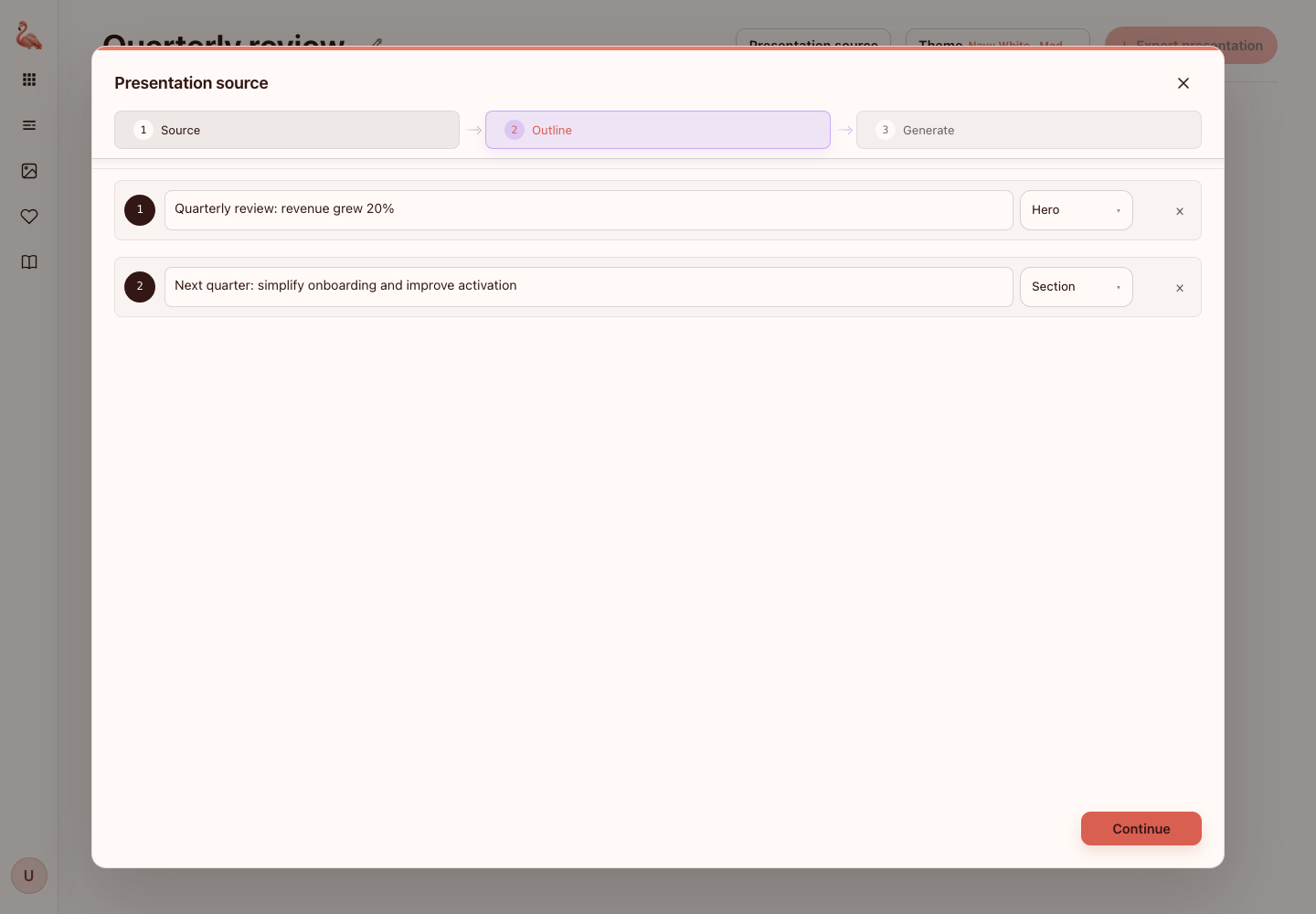
Review the story slide by slide before generating. 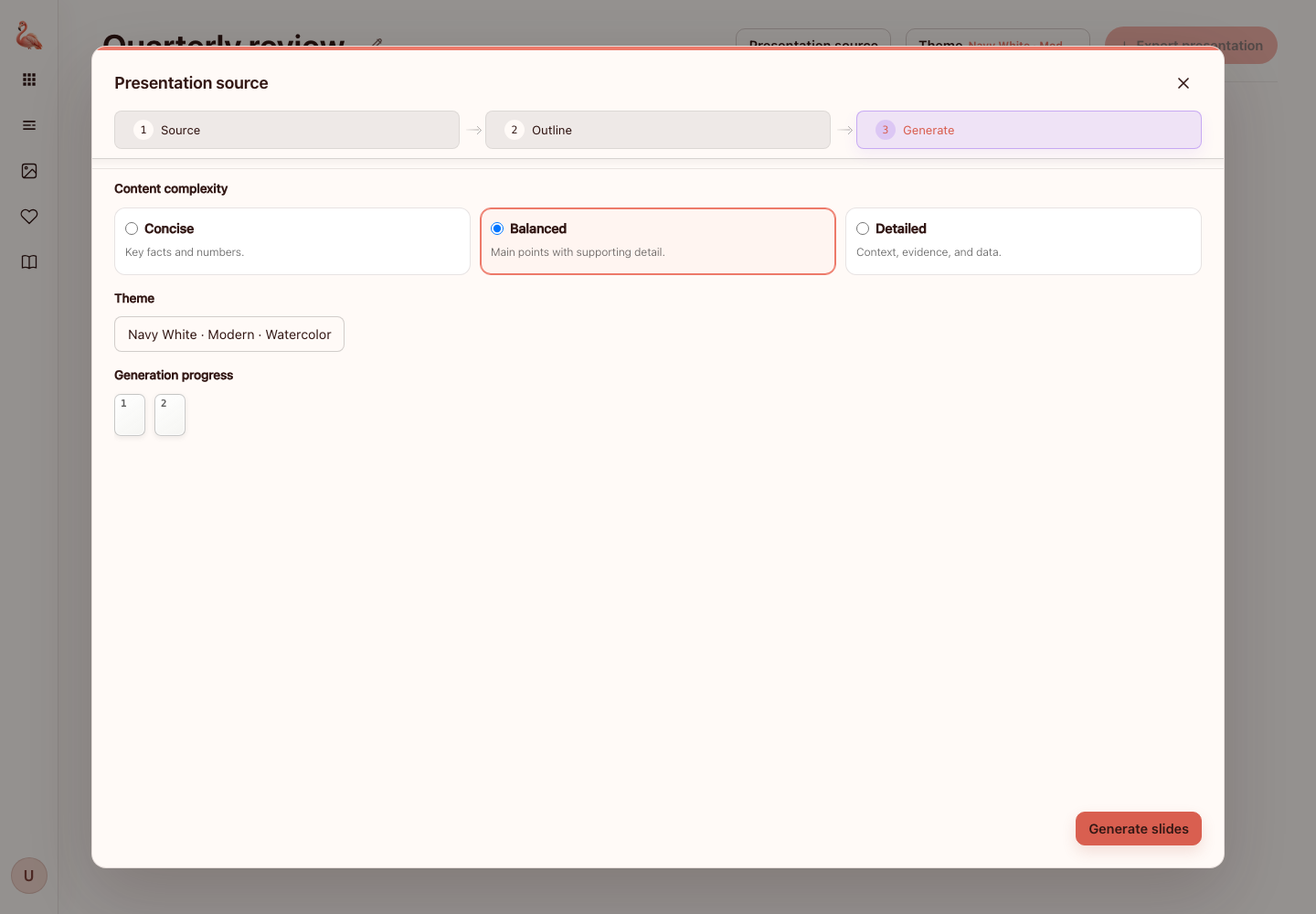
Choose colors, fonts, illustration style and content detail before generating. Generate and edit
Choose Generate slides and wait for the previews. Select a slide to edit its structured content, or use AI write to generate new content from up to 30,000 characters of material. Refresh the preview after editing and review it before moving on.
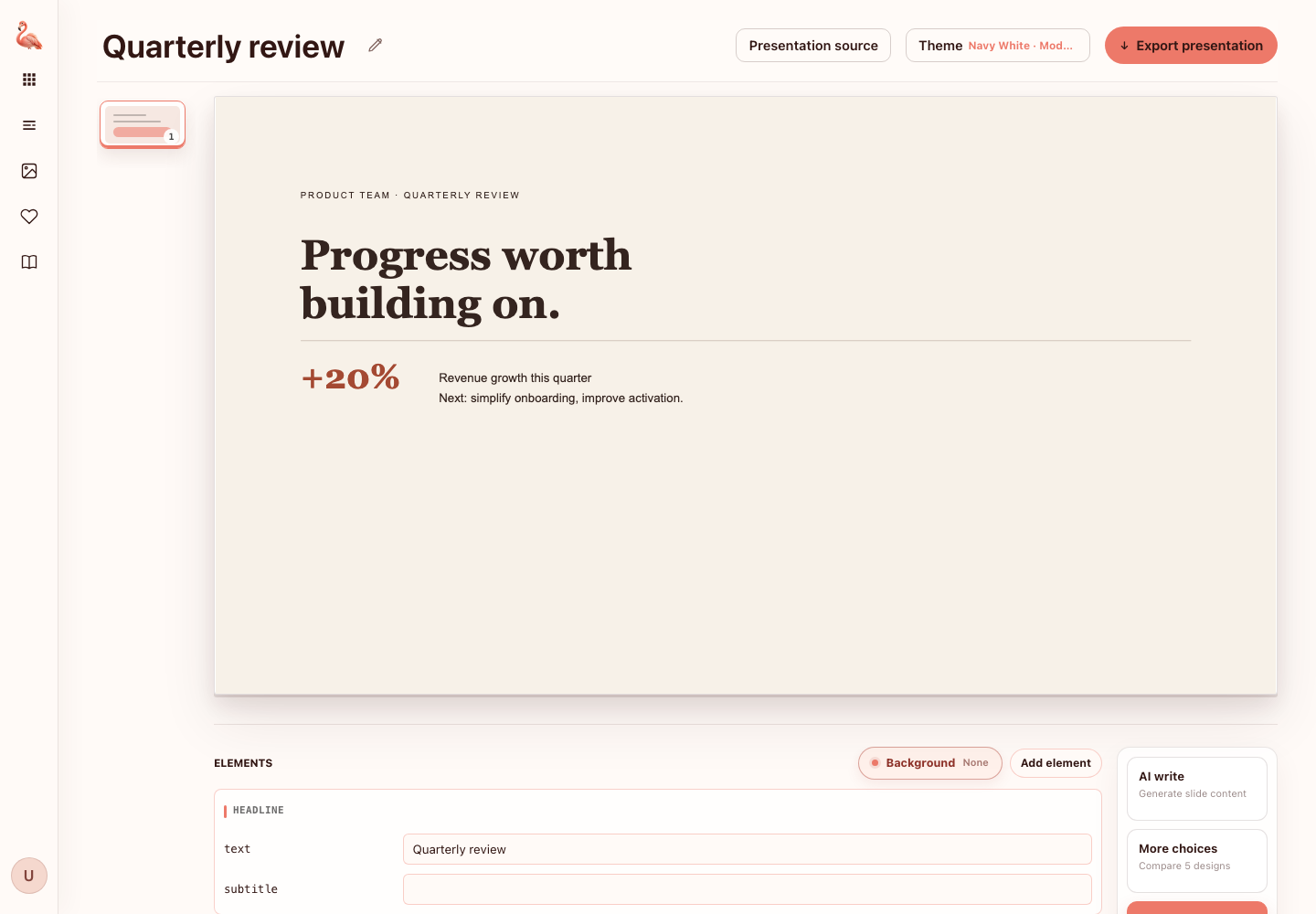
The workspace brings slide content, design tools and preview together. Compare designs and change the theme
Choose More choices on a rendered slide to compare up to five component variant combinations. Content, layout and background stay the same. Choices use no AI generation or Credits. Preview the candidates and apply the one you want; closing the dialog leaves the saved slide unchanged. If choices expire or the slide or theme changes, generate a new set.
You can change colors, fonts and illustration style in the workspace. Choose whether to refresh existing slides when prompted: saved previews and exports keep their previous appearance until refreshed.
Export your presentation
When every slide has a finished preview, choose Export presentation in the workspace toolbar shown above. Choose Download HTML to present in a browser, or Download PPTX with a Pro account to open it in PowerPoint. PPTX keeps text editable and complex visuals as separate images; fonts are not embedded. Export does not use Credits. If export reports unfinished slides, generate their previews and try again.
Explore complete presentation examples →
Back to top ↑